
EraHost – Free Domain, Cheap Hosting!


 USD - United States Dollar
 EUR - Euro
 GBP - British Pound
 CAD - Canadian Dollar
 CHF - Swiss Franc
 JPY - Japanese Yen
 AUD - Australian Dollar
 TRY - Turkish Lira
 CNY - Chinese Yuan
 INR - Indian Rupee
 UAH - Ukrainian Hryvnia
 AED - United Arab Emirat...United Arab Emirates Dirham
 AMD - Armenian Dram
 AOA - Angolan Kwanza
 ARS - Argentina Peso
 AWG - Aruba Guilder
 AZN - Azerbaijanian Mana...Azerbaijanian Manat
 BAM - Bosnian Convertibl...Bosnian Convertible Marka
 BDT - Bangladesh Taka
 BGN - Bulgarian Lev
 BHD - Bahraini Dinar
 BIF - Burundian Franc
 BMD - Bermudian Dollar
 BND - Brunei Dollar
 BOB - Bolivian Boliviano
 BRL - Brazilian Real
 BSD - Bahamian Dollar
 BTN - Bhutanese Ngultrum
 BWP - Botswana Pula
 BZD - Belize Dollar
 CLP - Chilean Peso
 CRC - Costa Rican Colon
 CVE - Cape Verdean Escud...Cape Verdean Escudo
 CZK - Czech Koruna
 DJF - Djiboutian Franc
 DKK - Danish Krone
 DOP - Dominican Peso
 DZD - Algerian Dinar
 EGP - Egyptian Pound
 ETB - Ethiopian Birr
 FJD - Fijian Dollar
 FKP - Falkland Island Po...Falkland Island Pound
 GEL - Georgian Lari
 GGP - Guernsey Pound
 GHS - Ghanaian Cedi
 GMD - Gambian Dalasi
 GTQ - Guatemalan Quetzal
 GYD - Guyanese Dollar
 HKD - Hong Kong Dollar
 HNL - Honduran Lempira
 HRK - Croatian Kuna
 HUF - Hungarian Forint
 ILS - Israeli New Shekel
 IMP - Isle of Man Pound
 ISK - Icelandic Krona
 JEP - Jersey Pound
 KES - Kenyan Shilling
 KGS - Kyrgystani Som
 KMF - Comorian Franc
 KRW - South Korean Won
 KWD - Kuwaiti Dinar
 KZT - Kazakhstani Tenge
 LAK - Lao Kip
 LKR - Sri Lankan Rupee
 LRD - Liberian Dollar
 LSL - Lesotho Loti
 LTL - Lithuanian Litas
 LVL - Latvian Lats
 MAD - Moroccan Dirham
 MDL - Moldovan Leu
 MKD - Macedonian Denar
 MNT - Mongolian Tugrik
 MOP - Macanese Pataca
 MRO - Mauritanian Ouguiy...Mauritanian Ouguiya
 MUR - Mauritian Rupee
 MVR - Maldivian Rufiyaa
 MXN - Mexican Peso
 MYR - Malaysian Ringgit
 MZN - Mozambican Metical
 NAD - Namibian Dollar
 NIO - Nicaraguan Cordoba...Nicaraguan Cordoba Oro
 NOK - Norwegian Krone
 NPR - Nepalese Rupee
 NZD - New Zealand Dollar
 OMR - Omani Rial
 PEN - Peruvian Nuevo Sol
 PGK - Papua New Guinean...Papua New Guinean Kina
 PKR - Pakistani Rupee
 PLN - Polish Zloty
 PYG - Paraguayan Guarani
 QAR - Qatari Riyal
 RON - Romanian New Leu
 RSD - Serbian Dinar
 RWF - Rwandan Franc
 SAR - Saudi Riyal
 SBD - Solomon Islands Do...Solomon Islands Dollar
 SCR - Seychellois Rupee
 SEK - Swedish Krona
 SGD - Singapore Dollar
 SHP - St. Helena Pound
 SRD - Surinamese Dollar
 SVC - Salvadoran Colon
 SZL - Swazi Lilangeni
 THB - Thai Baht
 TJS - Tajikistani Somoni
 TMT - Turkmenistani Mana...Turkmenistani Manat
 TND - Tunisian Dinar
 TOP - Tongan Pa`anga
 TWD - New Taiwan Dollar
 UYU - Uruguayan Peso
 WST - Samoan Tala
 ZMW - Zambian Kwacha
 › Blog
› cPanel Hosting Login
› Blog
› cPanel Hosting Login
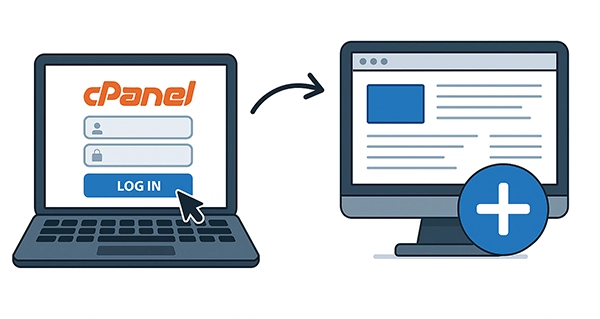
cPanel is a popular web hosting control panel that simplifies website management. It allows you to manage domains, files, databases, emails, and more. Here's how to log in to cPanel and add a site.
http://yourdomain.com/cpanelhttps://yourdomain.com:2083http://<server-ip>/cpanelssh user@yourserver.com/usr/local/cpanel/bin/cpanelOnce logged into cPanel, you can add a website by creating a new domain, subdomain, or addon domain.
Addon domains allow you to host multiple websites under one cPanel account.
Steps:
/public_html/newdomain.com).A subdomain is a prefix to your main domain (e.g., blog.example.com).
Steps:
blog)./public_html/blog).If your domain is registered with a different provider:
ns1.yourhost.com
ns2.yourhost.com/public_html//public_html/addondomain.comftp.yourdomain.comCommon Tasks:
http://yourdomain.com/cpanel).


 Telegram Bot