
EraHost – Free Domain, Cheap Hosting!


 USD - United States Dollar
 EUR - Euro
 GBP - British Pound
 CAD - Canadian Dollar
 CHF - Swiss Franc
 JPY - Japanese Yen
 AUD - Australian Dollar
 TRY - Turkish Lira
 CNY - Chinese Yuan
 INR - Indian Rupee
 UAH - Ukrainian Hryvnia
 AED - United Arab Emirat...United Arab Emirates Dirham
 AMD - Armenian Dram
 AOA - Angolan Kwanza
 ARS - Argentina Peso
 AWG - Aruba Guilder
 AZN - Azerbaijanian Mana...Azerbaijanian Manat
 BAM - Bosnian Convertibl...Bosnian Convertible Marka
 BDT - Bangladesh Taka
 BGN - Bulgarian Lev
 BHD - Bahraini Dinar
 BIF - Burundian Franc
 BMD - Bermudian Dollar
 BND - Brunei Dollar
 BOB - Bolivian Boliviano
 BRL - Brazilian Real
 BSD - Bahamian Dollar
 BTN - Bhutanese Ngultrum
 BWP - Botswana Pula
 BZD - Belize Dollar
 CLP - Chilean Peso
 CRC - Costa Rican Colon
 CVE - Cape Verdean Escud...Cape Verdean Escudo
 CZK - Czech Koruna
 DJF - Djiboutian Franc
 DKK - Danish Krone
 DOP - Dominican Peso
 DZD - Algerian Dinar
 EGP - Egyptian Pound
 ETB - Ethiopian Birr
 FJD - Fijian Dollar
 FKP - Falkland Island Po...Falkland Island Pound
 GEL - Georgian Lari
 GGP - Guernsey Pound
 GHS - Ghanaian Cedi
 GMD - Gambian Dalasi
 GTQ - Guatemalan Quetzal
 GYD - Guyanese Dollar
 HKD - Hong Kong Dollar
 HNL - Honduran Lempira
 HRK - Croatian Kuna
 HUF - Hungarian Forint
 ILS - Israeli New Shekel
 IMP - Isle of Man Pound
 ISK - Icelandic Krona
 JEP - Jersey Pound
 KES - Kenyan Shilling
 KGS - Kyrgystani Som
 KMF - Comorian Franc
 KRW - South Korean Won
 KWD - Kuwaiti Dinar
 KZT - Kazakhstani Tenge
 LAK - Lao Kip
 LKR - Sri Lankan Rupee
 LRD - Liberian Dollar
 LSL - Lesotho Loti
 LTL - Lithuanian Litas
 LVL - Latvian Lats
 MAD - Moroccan Dirham
 MDL - Moldovan Leu
 MKD - Macedonian Denar
 MNT - Mongolian Tugrik
 MOP - Macanese Pataca
 MRO - Mauritanian Ouguiy...Mauritanian Ouguiya
 MUR - Mauritian Rupee
 MVR - Maldivian Rufiyaa
 MXN - Mexican Peso
 MYR - Malaysian Ringgit
 MZN - Mozambican Metical
 NAD - Namibian Dollar
 NIO - Nicaraguan Cordoba...Nicaraguan Cordoba Oro
 NOK - Norwegian Krone
 NPR - Nepalese Rupee
 NZD - New Zealand Dollar
 OMR - Omani Rial
 PEN - Peruvian Nuevo Sol
 PGK - Papua New Guinean...Papua New Guinean Kina
 PKR - Pakistani Rupee
 PLN - Polish Zloty
 PYG - Paraguayan Guarani
 QAR - Qatari Riyal
 RON - Romanian New Leu
 RSD - Serbian Dinar
 RWF - Rwandan Franc
 SAR - Saudi Riyal
 SBD - Solomon Islands Do...Solomon Islands Dollar
 SCR - Seychellois Rupee
 SEK - Swedish Krona
 SGD - Singapore Dollar
 SHP - St. Helena Pound
 SRD - Surinamese Dollar
 SVC - Salvadoran Colon
 SZL - Swazi Lilangeni
 THB - Thai Baht
 TJS - Tajikistani Somoni
 TMT - Turkmenistani Mana...Turkmenistani Manat
 TND - Tunisian Dinar
 TOP - Tongan Pa`anga
 TWD - New Taiwan Dollar
 UYU - Uruguayan Peso
 WST - Samoan Tala
 ZMW - Zambian Kwacha
 › Blog
› phpMyAdmin Troubleshooting
› Blog
› phpMyAdmin Troubleshooting
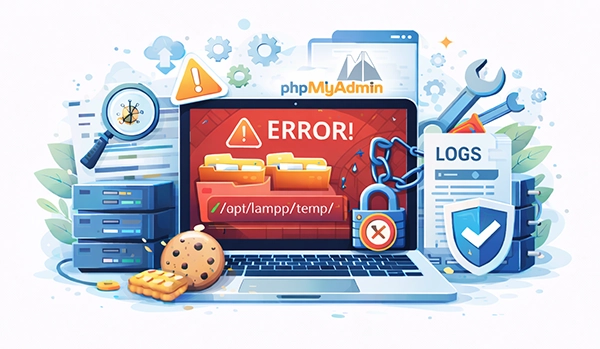
phpMyAdmin is a popular web-based database management tool for MySQL and MariaDB. The "Error during session start" is a common issue that prevents users from accessing phpMyAdmin, typically caused by PHP session configuration problems.
When phpMyAdmin displays the session start error, it means the application cannot create or access PHP session files due to one or more of these issues:
/var/lib/php/session)1 Start by identifying and fixing issues with PHP's session directory.
# Method 1: Using php -i command
php -i | grep "session.save_path"

# Method 2: Direct PHP command
php -r 'echo session_save_path();'

# Method 3: Check PHP info page
php --info | grep session.save_path
Expected output: session.save_path => /var/lib/php/session
If session.save_path is empty, PHP is using the default /tmp directory.
# Create the session directory with proper permissions
sudo mkdir -p /var/lib/php/session

# Verify directory was created
ls -la /var/lib/php/# Set proper permissions (read, write, execute for owner and group)
sudo chmod -R 770 /var/lib/php/session
# For Apache web server (common on Ubuntu/Debian)
sudo chown -R www-data:www-data /var/lib/php/session
# For Nginx web server (common on CentOS/RHEL)
sudo chown -R nginx:nginx /var/lib/php/session
# Verify permissions and ownership
ls -la /var/lib/php/session# For Apache
sudo systemctl restart apache2
# For Nginx with PHP-FPM
sudo systemctl restart nginx php8.0-fpm
# Check service status
sudo systemctl status apache2 --no-pager -l
# or
sudo systemctl status nginx --no-pager -l2 Check and correct PHP configuration settings.
# Find loaded configuration file
php --ini | grep "Loaded Configuration File"

# Common php.ini locations:
# Ubuntu/Debian: /etc/php/8.0/apache2/php.ini
# Ubuntu/Debian (PHP-FPM): /etc/php/8.0/fpm/php.ini
# CentOS/RHEL: /etc/php.ini
# CentOS/RHEL (PHP-FPM): /etc/php-fpm.d/www.conf# Edit php.ini file (replace with your actual path)
sudo nano /etc/php/8.0/apache2/php.ini
# Or for PHP-FPM
sudo nano /etc/php/8.0/fpm/php.ini
# Search for these session settings (use Ctrl+W in nano):
# session.save_handler = files
# session.save_path = "/var/lib/php/session"
# session.gc_maxlifetime = 3600
# session.use_strict_mode = 1
# session.cookie_secure = 0
# After editing, save and exit (Ctrl+X, then Y, then Enter)session.save_handler = files - Use files for session storagesession.save_path = "/var/lib/php/session" - Path to session directorysession.gc_maxlifetime = 3600 - Session lifetime in secondssession.use_strict_mode = 1 - Enhanced session securitysession.cookie_secure = 0 - Set to 1 if using HTTPS# For Apache with mod_php
sudo systemctl restart apache2
# For PHP-FPM with Nginx/Apache
sudo systemctl restart php8.0-fpm
sudo systemctl restart nginx # or apache2
# Verify PHP is using the correct settings
php -i | grep session.save_path3 Corrupt session files can prevent new sessions from being created.
# Remove all session files
sudo rm -rf /var/lib/php/session/*

# Or remove only old session files (older than 1 hour)
sudo find /var/lib/php/session/ -type f -mmin +60 -delete

# Check if directory is empty
ls -la /var/lib/php/session/# Check if PHP is using /tmp
php -r 'echo session_save_path();'
# If empty or shows /tmp, clear PHP session files in tmp
sudo rm -rf /tmp/sess_*
sudo rm -rf /tmp/php_sessions/*
# Create dedicated tmp directory for PHP sessions
sudo mkdir -p /tmp/php_sessions
sudo chmod 770 /tmp/php_sessions
sudo chown www-data:www-data /tmp/php_sessions # or nginx:nginx4 Insufficient disk space prevents PHP from creating new session files.
# Check overall disk usage
df -h

# Check specific partition (usually /var or /)
df -h /var
df -h /

# Check inode usage (important for many small files)
df -i
df -i /var

# Check size of session directory
du -sh /var/lib/php/session/
du -sh /tmp/# Clean package manager cache
sudo apt clean # Ubuntu/Debian
sudo yum clean all # CentOS/RHEL
# Remove old log files
sudo journalctl --vacuum-time=3d
sudo rm -rf /var/log/*.gz
sudo rm -rf /var/log/*.old
# Remove temporary files
sudo rm -rf /tmp/*
sudo rm -rf /var/tmp/*
# Check largest directories
sudo du -sh /* | sort -rh | head -10
sudo du -sh /var/* | sort -rh | head -105 Security modules may be blocking PHP from writing to session directory.
# Check if SELinux is enabled
sestatus
getenforce

# Check SELinux logs for PHP/httpd denials
sudo grep "denied" /var/log/audit/audit.log | grep php
sudo grep "denied" /var/log/audit/audit.log | grep httpd

# Alternative: Use sealert for detailed analysis
sudo sealert -a /var/log/audit/audit.log | grep -A 10 -B 5 "denied"# Apply correct SELinux context to session directory
sudo chcon -R -t httpd_sys_rw_content_t /var/lib/php/session
# Make the change permanent
sudo semanage fcontext -a -t httpd_sys_rw_content_t "/var/lib/php/session(/.*)?"
sudo restorecon -Rv /var/lib/php/session
# Temporarily disable SELinux for testing (not recommended for production)
sudo setenforce 0
# To re-enable: sudo setenforce 1# Check AppArmor status
sudo aa-status
# Check if PHP/phpMyAdmin profiles are enforced
sudo aa-status | grep -i php
sudo aa-status | grep -i apache
sudo aa-status | grep -i nginx
# Put PHP-FPM in complain mode for testing
sudo aa-complain /usr/sbin/php-fpm8.0
sudo aa-complain /usr/sbin/php-fpm
# Check AppArmor logs
sudo dmesg | grep -i apparmor
sudo journalctl -xe | grep -i apparmor6 Enable detailed logging to identify the exact cause.
# Locate phpMyAdmin config file
# Common locations:
# Ubuntu/Debian: /etc/phpmyadmin/config.inc.php
# CentOS/RHEL: /etc/phpMyAdmin/config.inc.php

# Edit phpMyAdmin configuration
sudo nano /etc/phpmyadmin/config.inc.php

# Add or modify these settings:
$cfg['Debug'] = true;
$cfg['SendErrorReports'] = 'always';
$cfg['ShowPhpInfo'] = true;
ini_set('display_errors', '1');
error_reporting(E_ALL);

# Save and restart web server
sudo systemctl restart apache2 # or nginx# Apache error logs
sudo tail -f /var/log/apache2/error.log
sudo tail -f /var/log/httpd/error_log
# Nginx error logs
sudo tail -f /var/log/nginx/error.log
# PHP error logs
sudo tail -f /var/log/php_errors.log
sudo tail -f /var/log/php8.0-fpm.log # or your PHP version
# System logs
sudo tail -f /var/log/syslog
sudo journalctl -xe -f
# phpMyAdmin specific logs (if configured)
sudo tail -f /var/log/phpmyadmin/error.log# Create a simple PHP session test script
sudo nano /var/www/html/test_session.php
# Add this content:
<?php
session_start();
$_SESSION['test'] = 'phpMyAdmin session test';
echo "Session ID: " . session_id() . "<br>";
echo "Session test value: " . $_SESSION['test'] . "<br>";
echo "Session save path: " . session_save_path() . "<br>";
echo "Sessions working correctly!";
?>
# Test via browser: http://yourserver/test_session.php
# Or via command line:
php /var/www/html/test_session.php| Issue | Fix | Command/Solution |
|---|---|---|
| Session directory missing | Create directory | sudo mkdir -p /var/lib/php/session |
| Incorrect folder permissions | Set proper permissions | sudo chmod -R 770 /var/lib/php/session |
| Wrong ownership | Change ownership | sudo chown -R www-data:www-data /var/lib/php/session |
| Misconfigured php.ini | Update session.save_path | Edit /etc/php/8.0/apache2/php.ini |
| Corrupt session files | Clear session files | sudo rm -rf /var/lib/php/session/* |
| SELinux blocking access | Set SELinux context | sudo chcon -R -t httpd_sys_rw_content_t /var/lib/php/session |
| AppArmor restrictions | Put in complain mode | sudo aa-complain /usr/sbin/php-fpm8.0 |
| Full disk space/inodes | Free up space | df -h, df -i, then clean up |
| PHP configuration error | Check PHP logs | sudo tail -f /var/log/php_errors.log |
| Web server misconfiguration | Check web server logs | sudo tail -f /var/log/apache2/error.log |
By following this comprehensive guide, you should be able to resolve the phpMyAdmin "Error during session start" issue and restore full functionality to your database management interface.







 Telegram Bot
 USD - United States Dollar
 EUR - Euro
 GBP - British Pound
 CAD - Canadian Dollar
 CHF - Swiss Franc
 JPY - Japanese Yen
 AUD - Australian Dollar
 RUB - Russian Ruble
 TRY - Turkish Lira
 CNY - Chinese Yuan
 INR - Indian Rupee
 UAH - Ukrainian Hryvnia