
EraHost – Free Domain, Cheap Hosting!


 USD - United States Dollar
 EUR - Euro
 GBP - British Pound
 CAD - Canadian Dollar
 CHF - Swiss Franc
 JPY - Japanese Yen
 AUD - Australian Dollar
 TRY - Turkish Lira
 CNY - Chinese Yuan
 INR - Indian Rupee
 UAH - Ukrainian Hryvnia
 AED - United Arab Emirat...United Arab Emirates Dirham
 AMD - Armenian Dram
 AOA - Angolan Kwanza
 ARS - Argentina Peso
 AWG - Aruba Guilder
 AZN - Azerbaijanian Mana...Azerbaijanian Manat
 BAM - Bosnian Convertibl...Bosnian Convertible Marka
 BDT - Bangladesh Taka
 BGN - Bulgarian Lev
 BHD - Bahraini Dinar
 BIF - Burundian Franc
 BMD - Bermudian Dollar
 BND - Brunei Dollar
 BOB - Bolivian Boliviano
 BRL - Brazilian Real
 BSD - Bahamian Dollar
 BTN - Bhutanese Ngultrum
 BWP - Botswana Pula
 BZD - Belize Dollar
 CLP - Chilean Peso
 CRC - Costa Rican Colon
 CVE - Cape Verdean Escud...Cape Verdean Escudo
 CZK - Czech Koruna
 DJF - Djiboutian Franc
 DKK - Danish Krone
 DOP - Dominican Peso
 DZD - Algerian Dinar
 EGP - Egyptian Pound
 ETB - Ethiopian Birr
 FJD - Fijian Dollar
 FKP - Falkland Island Po...Falkland Island Pound
 GEL - Georgian Lari
 GGP - Guernsey Pound
 GHS - Ghanaian Cedi
 GMD - Gambian Dalasi
 GTQ - Guatemalan Quetzal
 GYD - Guyanese Dollar
 HKD - Hong Kong Dollar
 HNL - Honduran Lempira
 HRK - Croatian Kuna
 HUF - Hungarian Forint
 ILS - Israeli New Shekel
 IMP - Isle of Man Pound
 ISK - Icelandic Krona
 JEP - Jersey Pound
 KES - Kenyan Shilling
 KGS - Kyrgystani Som
 KMF - Comorian Franc
 KRW - South Korean Won
 KWD - Kuwaiti Dinar
 KZT - Kazakhstani Tenge
 LAK - Lao Kip
 LKR - Sri Lankan Rupee
 LRD - Liberian Dollar
 LSL - Lesotho Loti
 LTL - Lithuanian Litas
 LVL - Latvian Lats
 MAD - Moroccan Dirham
 MDL - Moldovan Leu
 MKD - Macedonian Denar
 MNT - Mongolian Tugrik
 MOP - Macanese Pataca
 MRO - Mauritanian Ouguiy...Mauritanian Ouguiya
 MUR - Mauritian Rupee
 MVR - Maldivian Rufiyaa
 MXN - Mexican Peso
 MYR - Malaysian Ringgit
 MZN - Mozambican Metical
 NAD - Namibian Dollar
 NIO - Nicaraguan Cordoba...Nicaraguan Cordoba Oro
 NOK - Norwegian Krone
 NPR - Nepalese Rupee
 NZD - New Zealand Dollar
 OMR - Omani Rial
 PEN - Peruvian Nuevo Sol
 PGK - Papua New Guinean...Papua New Guinean Kina
 PKR - Pakistani Rupee
 PLN - Polish Zloty
 PYG - Paraguayan Guarani
 QAR - Qatari Riyal
 RON - Romanian New Leu
 RSD - Serbian Dinar
 RWF - Rwandan Franc
 SAR - Saudi Riyal
 SBD - Solomon Islands Do...Solomon Islands Dollar
 SCR - Seychellois Rupee
 SEK - Swedish Krona
 SGD - Singapore Dollar
 SHP - St. Helena Pound
 SRD - Surinamese Dollar
 SVC - Salvadoran Colon
 SZL - Swazi Lilangeni
 THB - Thai Baht
 TJS - Tajikistani Somoni
 TMT - Turkmenistani Mana...Turkmenistani Manat
 TND - Tunisian Dinar
 TOP - Tongan Pa`anga
 TWD - New Taiwan Dollar
 UYU - Uruguayan Peso
 WST - Samoan Tala
 ZMW - Zambian Kwacha
 › Blog
› Install VestaCP on VPS/Server
› Blog
› Install VestaCP on VPS/Server
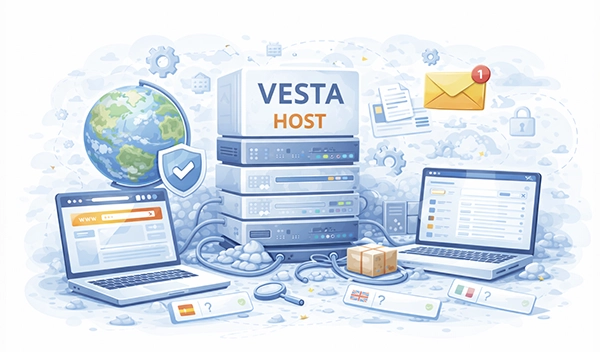
VestaCP (Vesta Control Panel) is a free, lightweight, and powerful hosting control panel that allows you to manage websites, domains, email accounts, databases, DNS, and FTP on your VPS or dedicated server.
Before installing VestaCP, ensure your server meets the following requirements:
# Check operating system
cat /etc/os-release

# Check available memory
free -h

# Check disk space
df -h

# Check CPU information
nproc
lscpu | grep "CPU(s)"1 Before installing, update your system to ensure all packages are current.
sudo apt update
sudo apt upgrade -y
sudo apt autoremove -ysudo yum update -y
sudo yum upgrade -y# Set a fully qualified domain name (FQDN)
sudo hostnamectl set-hostname server.yourdomain.com
# Verify hostname
hostname
hostname -fsudo reboot
# After reboot, verify system is ready
uptime
whoami2 Download and run the VestaCP installation script.
# Download using curl
curl -O http://vestacp.com/pub/vst-install.sh

# Or using wget
wget http://vestacp.com/pub/vst-install.sh

# Make the script executable
chmod +x vst-install.shRun the installer with your preferred options:
sudo bash vst-install.shThe script will ask for:
server.yourdomain.com (must be a fully qualified domain name)sudo bash vst-install.sh \
--email admin@yourdomain.com \
--hostname server.yourdomain.com \
--nginx yes \
--apache yes \
--phpfpm yes \
--named yes \
--remi yes \
--vsftpd yes \
--proftpd no \
--iptables yes \
--fail2ban yes \
--mysql yes \
--postgresql no \
--force--nginx yes --apache yes: Install both web servers (Nginx as reverse proxy)--phpfpm yes: Use PHP-FPM for better PHP performance--mysql yes: Install MariaDB (MySQL-compatible)--force: Skip confirmation prompts# The installation takes 10-30 minutes depending on server speed
# You can monitor system resources during installation
htop
# or
watch -n 5 'free -h; df -h /'3 After installation completes, the script will display login credentials.
Congratulations, you have successfully installed Vesta Control Panel.

    https://your-server-ip:8083
    https://server.yourdomain.com:8083

    username: admin
    password: ********

    We hope that you enjoy your installation of Vesta. Please feel free to contact us anytime if you have any questions.

Thank you.

    --
Vesta Control Panelhttps://your-server-ip:8083 or https://server.yourdomain.com:8083adminv-change-user-password admin NEWPASSWORD
4 If you cannot access the panel, firewall rules may be blocking the ports.
# Allow VestaCP admin interface
sudo ufw allow 8083/tcp

# Allow web traffic
sudo ufw allow 80/tcp
sudo ufw allow 443/tcp

# Allow DNS
sudo ufw allow 53/tcp
sudo ufw allow 53/udp

# Allow mail ports
sudo ufw allow 25/tcp    # SMTP
sudo ufw allow 587/tcp   # Submission
sudo ufw allow 465/tcp   # SMTPS
sudo ufw allow 110/tcp   # POP3
sudo ufw allow 995/tcp   # POP3S
sudo ufw allow 143/tcp   # IMAP
sudo ufw allow 993/tcp   # IMAPS

# Allow FTP
sudo ufw allow 21/tcp
sudo ufw allow 20/tcp

# Reload firewall
sudo ufw reload
sudo ufw status verbose# Add necessary ports
sudo firewall-cmd --permanent --add-port=8083/tcp
sudo firewall-cmd --permanent --add-port=80/tcp
sudo firewall-cmd --permanent --add-port=443/tcp
sudo firewall-cmd --permanent --add-port=53/tcp
sudo firewall-cmd --permanent --add-port=53/udp
# Add service-based rules
sudo firewall-cmd --permanent --add-service=http
sudo firewall-cmd --permanent --add-service=https
sudo firewall-cmd --permanent --add-service=dns
sudo firewall-cmd --permanent --add-service=ftp
sudo firewall-cmd --permanent --add-service=smtp
sudo firewall-cmd --permanent --add-service=pop3
sudo firewall-cmd --permanent --add-service=imap
# Reload firewall
sudo firewall-cmd --reload
sudo firewall-cmd --list-allsudo systemctl restart vesta
# Check service status
sudo systemctl status vesta --no-pager -l5 After successful installation, implement security best practices.
# Change password for admin user
sudo v-change-user-password admin NEW_STRONG_PASSWORD

# Verify password change (you'll need to use new password to login)
sudo v-list-users | grep admin# Add Let's Encrypt SSL certificate
sudo v-add-letsencrypt-host admin
# Alternative: If you have your own SSL certificate
sudo v-add-web-domain-ssl admin server.yourdomain.com /path/to/certificate.crt /path/to/private.key
# Restart VestaCP to apply SSL
sudo systemctl restart vesta# Enable Two-Factor Authentication (if available in your VestaCP version)
sudo v-add-2fa admin
# Change default SSH port (edit /etc/ssh/sshd_config)
sudo sed -i 's/#Port 22/Port 2222/' /etc/ssh/sshd_config
sudo systemctl restart sshd
# Install and configure fail2ban (usually installed by default)
sudo systemctl enable fail2ban
sudo systemctl start fail2banv-backup-user admin| Step | Action | Command |
|---|---|---|
| 1. Update Server | Update system packages | apt update && apt upgrade -y or yum update -y |
| 2. Set Hostname | Configure FQDN | hostnamectl set-hostname server.domain.com |
| 3. Download VestaCP | Get installation script | curl -O http://vestacp.com/pub/vst-install.sh |
| 4. Install VestaCP | Run installer with options | bash vst-install.sh --force or interactive |
| 5. Access Panel | Login via browser | https://your-server-ip:8083 |
| 6. Configure Firewall | Open required ports | ufw allow 8083/tcp or firewall-cmd --add-port=8083/tcp |
| 7. Secure Installation | Change password, enable SSL | v-change-user-password admin, v-add-letsencrypt-host admin |
| 8. Post-Install | Create backup, add website | v-backup-user admin, Add domain via panel |
Your VestaCP hosting control panel is now fully installed and ready to manage websites, emails, databases, and DNS on your VPS or dedicated server!







 Telegram Bot
 USD - United States Dollar
 EUR - Euro
 GBP - British Pound
 CAD - Canadian Dollar
 CHF - Swiss Franc
 JPY - Japanese Yen
 AUD - Australian Dollar
 RUB - Russian Ruble
 TRY - Turkish Lira
 CNY - Chinese Yuan
 INR - Indian Rupee
 UAH - Ukrainian Hryvnia