


 USD - United States Dollar
 EUR - Euro
 GBP - British Pound
 CAD - Canadian Dollar
 CHF - Swiss Franc
 JPY - Japanese Yen
 AUD - Australian Dollar
 TRY - Turkish Lira
 CNY - Chinese Yuan
 INR - Indian Rupee
 UAH - Ukrainian Hryvnia
 AED - United Arab Emirat...
 AMD - Armenian Dram
 AOA - Angolan Kwanza
 ARS - Argentina Peso
 AWG - Aruba Guilder
 AZN - Azerbaijanian Mana...
 BAM - Bosnian Convertibl...
 BDT - Bangladesh Taka
 BGN - Bulgarian Lev
 BHD - Bahraini Dinar
 BIF - Burundian Franc
 BMD - Bermudian Dollar
 BND - Brunei Dollar
 BOB - Bolivian Boliviano
 BRL - Brazilian Real
 BSD - Bahamian Dollar
 BTN - Bhutanese Ngultrum
 BWP - Botswana Pula
 BZD - Belize Dollar
 CLP - Chilean Peso
 CRC - Costa Rican Colon
 CVE - Cape Verdean Escud...
 CZK - Czech Koruna
 DJF - Djiboutian Franc
 DKK - Danish Krone
 DOP - Dominican Peso
 DZD - Algerian Dinar
 EGP - Egyptian Pound
 ETB - Ethiopian Birr
 FJD - Fijian Dollar
 FKP - Falkland Island Po...
 GEL - Georgian Lari
 GGP - Guernsey Pound
 GHS - Ghanaian Cedi
 GMD - Gambian Dalasi
 GTQ - Guatemalan Quetzal
 GYD - Guyanese Dollar
 HKD - Hong Kong Dollar
 HNL - Honduran Lempira
 HRK - Croatian Kuna
 HUF - Hungarian Forint
 ILS - Israeli New Shekel
 IMP - Isle of Man Pound
 ISK - Icelandic Krona
 JEP - Jersey Pound
 KES - Kenyan Shilling
 KGS - Kyrgystani Som
 KMF - Comorian Franc
 KRW - South Korean Won
 KWD - Kuwaiti Dinar
 KZT - Kazakhstani Tenge
 LAK - Lao Kip
 LKR - Sri Lankan Rupee
 LRD - Liberian Dollar
 LSL - Lesotho Loti
 LTL - Lithuanian Litas
 LVL - Latvian Lats
 MAD - Moroccan Dirham
 MDL - Moldovan Leu
 MKD - Macedonian Denar
 MNT - Mongolian Tugrik
 MOP - Macanese Pataca
 MRO - Mauritanian Ouguiy...
 MUR - Mauritian Rupee
 MVR - Maldivian Rufiyaa
 MXN - Mexican Peso
 MYR - Malaysian Ringgit
 MZN - Mozambican Metical
 NAD - Namibian Dollar
 NIO - Nicaraguan Cordoba...
 NOK - Norwegian Krone
 NPR - Nepalese Rupee
 NZD - New Zealand Dollar
 OMR - Omani Rial
 PEN - Peruvian Nuevo Sol
 PGK - Papua New Guinean...
 PKR - Pakistani Rupee
 PLN - Polish Zloty
 PYG - Paraguayan Guarani
 QAR - Qatari Riyal
 RON - Romanian New Leu
 RSD - Serbian Dinar
 RWF - Rwandan Franc
 SAR - Saudi Riyal
 SBD - Solomon Islands Do...
 SCR - Seychellois Rupee
 SEK - Swedish Krona
 SGD - Singapore Dollar
 SHP - St. Helena Pound
 SRD - Surinamese Dollar
 SVC - Salvadoran Colon
 SZL - Swazi Lilangeni
 THB - Thai Baht
 TJS - Tajikistani Somoni
 TMT - Turkmenistani Mana...
 TND - Tunisian Dinar
 TOP - Tongan Pa`anga
 TWD - New Taiwan Dollar
 UYU - Uruguayan Peso
 WST - Samoan Tala
 ZMW - Zambian Kwacha


 Telegram Bot

Overview
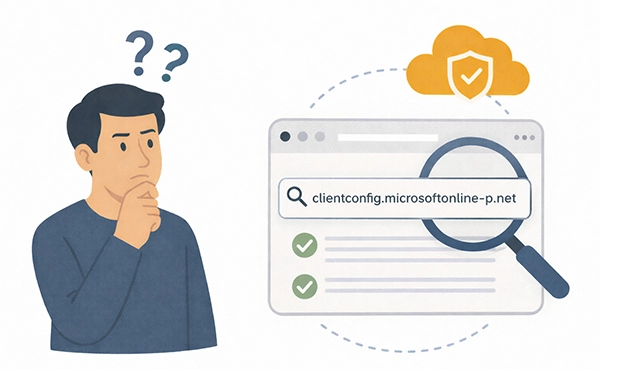
clientconfig.microsoftonline-p.net is a CNAME (Canonical Name) DNS record used by Microsoft Online Services for authentication and identity verification in Microsoft 365 (formerly Office 365) and Azure Active Directory (Azure AD).
Purpose of clientconfig.microsoftonline-p.net
- Verifies domain ownership for Microsoft services.
- Enables Single Sign-On (SSO) for Microsoft 365 apps (Outlook, Teams, SharePoint, OneDrive).
- Helps with seamless authentication in Azure AD and federated domains.
- Ensures that login requests route correctly through Microsoft’s authentication infrastructure.
If your domain is registered to use Microsoft 365 or Azure AD, Microsoft requires a CNAME record pointing to clientconfig.microsoftonline-p.net.
How to Set Up clientconfig.microsoftonline-p.net (MSOID CNAME Record)
If you're setting up Microsoft 365 or Azure AD, you need to add the MSOID CNAME record to your domain's DNS settings.
Required DNS Record Format
| Record Type | Host (Name) | Value (Target) | TTL |
|---|---|---|---|
| CNAME | msoid.yourdomain.com | clientconfig.microsoftonline-p.net | 3600 |
Replace yourdomain.com with your actual domain name.
Add the MSOID Record in Your DNS Settings
For cPanel Users
- Log in to cPanel.
- Navigate to Zone Editor > Click Manage.
- Click "Add Record" > Select CNAME.
- Enter:
- Name:
msoid.yourdomain.com - Target:
clientconfig.microsoftonline-p.net - TTL:
3600
- Name:
- Click Save.
For Cloudflare Users
- Log in to Cloudflare > Go to DNS Management.
- Click "Add Record" > Select CNAME.
- Enter:
- Name:
msoid - Target:
clientconfig.microsoftonline-p.net - TTL: Auto
- Name:
- Ensure Proxy Status is set to "DNS Only" (?? Gray Cloud, NOT ?? Orange).
- Click Save.
For Other Registrars (GoDaddy, Namecheap, etc.)
- Go to DNS Management.
- Add a new CNAME Record:
- Host:
msoid - Type: CNAME
- Value:
clientconfig.microsoftonline-p.net - TTL:
3600
- Host:
- Click Save.
Now, Microsoft can verify your domain for authentication services.
How to Verify That the clientconfig.microsoftonline-p.net Record Works
Check MSOID Record via Command Line
Linux/macOS
dig CNAME msoid.yourdomain.com +shortExpected Output (Correct Setup):
clientconfig.microsoftonline-p.net.Windows (Command Prompt)
nslookup -type=CNAME msoid.yourdomain.comExpected Output:
msoid.yourdomain.com canonical name = clientconfig.microsoftonline-p.net.Use Online DNS Checkers
If the correct CNAME appears, the record is resolving properly.
Troubleshooting clientconfig.microsoftonline-p.net Issues
| Issue | Possible Cause | Fix |
|---|---|---|
| MSOID record not found | CNAME record missing | Add msoid.yourdomain.com > clientconfig.microsoftonline-p.net |
| DNS changes not detected | Takes time to propagate | Wait 24-48 hours |
| Cloudflare blocking lookup | Cloudflare proxy enabled | Set Proxy to "DNS Only" (Gray Cloud ??) |
| Conflicting CNAME records | Duplicate records in DNS | Remove incorrect CNAMEs |
| Microsoft 365 still not verifying | DNS propagation delay | Wait, then re-check in Admin Center |
Final Verification in Microsoft 365
- Log in to Microsoft 365 Admin Center > admin.microsoft.com.
- Navigate to Settings > Domains.
- Select your domain.
- Click "Verify DNS Settings".
- Microsoft will check the MSOID record.
Once Microsoft detects it, authentication will work properly.
Summary Table
| Task | Steps |
|---|---|
| Check What clientconfig.microsoftonline-p.net Is | It's a Microsoft authentication CNAME record |
| Set Up MSOID Record | Add CNAME: msoid.yourdomain.com > clientconfig.microsoftonline-p.net |
| Verify DNS Record | Use dig, nslookup, or MXToolbox |
| Fix MSOID Issues | Ensure correct CNAME, wait for propagation, disable Cloudflare proxy |
| Confirm in Microsoft 365 | Go to Admin Center > Domains > Verify |
Now your Microsoft authentication (clientconfig.microsoftonline-p.net) should be working properly!





 USD - United States Dollar
 EUR - Euro
 GBP - British Pound
 CAD - Canadian Dollar
 CHF - Swiss Franc
 JPY - Japanese Yen
 AUD - Australian Dollar
 RUB - Russian Ruble
 TRY - Turkish Lira
 CNY - Chinese Yuan
 INR - Indian Rupee
 UAH - Ukrainian Hryvnia